 Business Central Bytes
Track Sent Emails for a Specific Record in Dynamics 365 Business Central
Share this Article
Share this Article
When working with Business Central, one common challenge is tracking which emails were sent for a specific record — say, a particular Sales Quote. Since multiple quotes exist and emails are sent through various flows (approval notifications, custom code, manual sends), it quickly becomes difficult to find the emails tied to just one record.
In this post, we’ll look at two scenarios and how to handle each one cleanly.
The Problem
Imagine you have dozens of Sales Quotes, and for each one, emails are flying out — approval requests, rejections, confirmations, and custom notifications. The Sent Emails list in Business Central shows all of them together, with no easy way to filter by a specific quote. You’d have to scroll, guess, and cross-reference just to find what was sent for Quote #SR/EST/25-26/011975.
The solution? Linking sent emails to their source record, and then surfacing them with a dedicated action button on the record page.
Case 1: Emails Sent by Business Central (Approval Workflows)
When Business Central sends emails automatically — for example, when triggering an approval request, or when a request is approved or rejected — these emails are sent internally by the platform. In this case, BC already tracks the relation; you just need to expose it through an action button.
Add the following action to your Sales Quote page extension:
action(ShowSentMail)
{
    Caption = 'View Sent Mail (Quote)';
    ApplicationArea = All;
    ToolTip = 'View all emails sent for this Sales Quote.';
    Image = Email;
    trigger OnAction()
    var
        Email: Codeunit Email;
    begin
        Email.OpenSentEmails(Database::"Sales Header", Rec.SystemId);
    end;
}
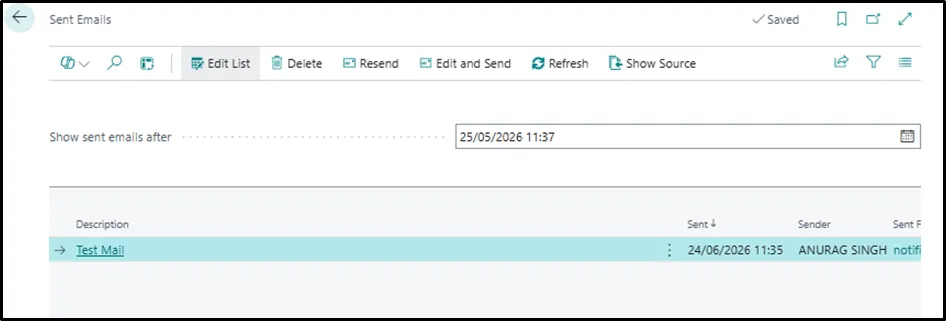
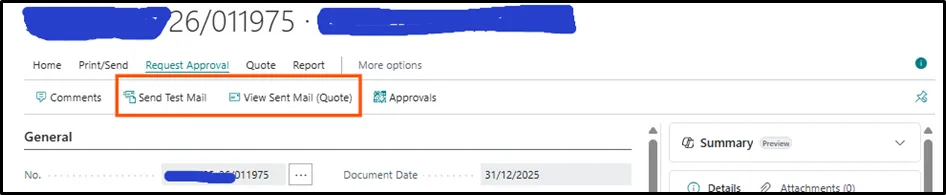
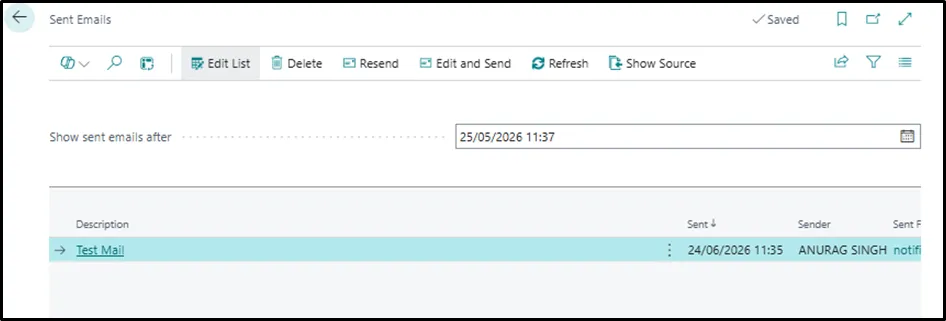
This calls Email.OpenSentEmails(), passing the table ID and the record’s SystemId. Business Central then filters the Sent Emails list to show only emails related to that specific record. Result: Clicking “View Sent Mail (Quote)” opens the Sent Emails page filtered to the current quote — no more scrolling through a sea of unrelated emails.
Case 2: Emails Sent via Custom Code
If you’re writing your own email-sending logic, Business Central won’t automatically know which record the email belongs to. You need to explicitly register the relation using Email.AddRelation() before sending.
Here’s a complete example — a “Send Test Mail” action that sends an email and properly links it to the Sales Quote:
action(SendTestMail)
{
    Caption = 'Send Test Mail';
    ApplicationArea = All;
    ToolTip = 'Send a test email from this Sales Quote.';
    Image = SendMail;
    trigger OnAction()
    var
        SalesHeader: Record "Sales Header";
        Customer: Record Customer;
        Email: Codeunit Email;
        EmailMessage: Codeunit "Email Message";
        RelationType: Enum "Email Relation Type";
        Origin: Enum "Email Relation Origin";
        ToRecipients: List of [Text];
        SubjectBody, Body: Text;
        SubjectLbl: Label 'This mail is sent from Sales Quote %1', Comment = '%1=Sales Quote No.';
    begin
        SalesHeader.Get(Rec."Document Type", Rec."No.");
        Customer.Get(SalesHeader."Sell-to Customer No.");
        ToRecipients.Add(Customer."E-Mail");
        SubjectBody := 'Test Mail';
        Body := StrSubstNo(SubjectLbl, SalesHeader."No.");
        EmailMessage.Create(ToRecipients, SubjectBody, Body, true);
        // Link this email to the Sales Header record
        Email.AddRelation(
            EmailMessage,
            Database::"Sales Header",
            SalesHeader.SystemId,
            RelationType::"Primary Source",
            Origin::"Compose Context"
        );
        Email.Send(EmailMessage);
    end;
}
The key line is:
Email.AddRelation(EmailMessage, Database::”Sales Header”, SalesHeader.SystemId, RelationType::”Primary Source”, Origin::”Compose Context”); This registers the email message as being related to the specific Sales Header record, using its SystemId as the unique identifier. Once sent, this email will appear when you use the View Sent Mail (Quote) button from Case 1.
Screenshots:
Action buttons on the Sales Quote page
Sent Emails list filtered to this quote
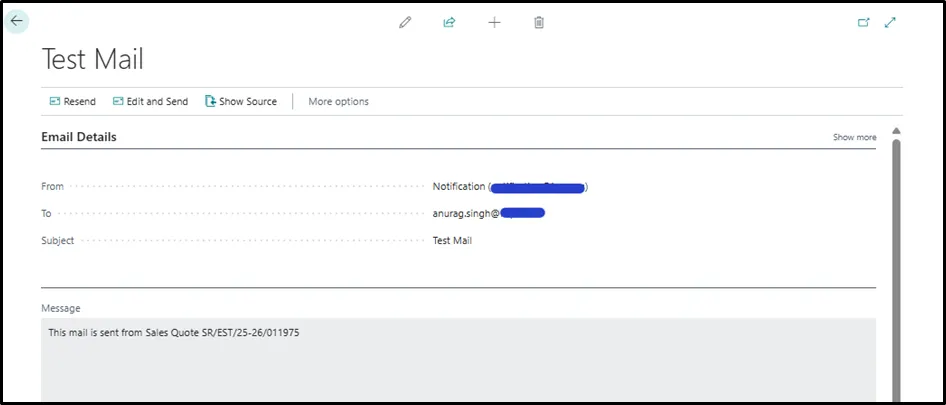
Email details