
How to Generate Dynamic Business Central Record URLs Using AL
Share this Article
Share this Article
When developing extensions for Microsoft Dynamics 365 Business Central, there are many scenarios where you need to generate a direct link to a page or a specific record.
For example:
Sending approval emails
Adding links in notifications
Returning a Business Central URL from an API
Sharing records through Microsoft Teams or Outlook
Creating audit logs with clickable links
Instead of hardcoding the Business Central URL, Microsoft provides the built-in GetUrl() system method to generate the correct URL dynamically.
In this article, we'll see how to use it.
Why use GetUrl()?
Hardcoding URLs like this:
https://businesscentral.dynamics.com/.../Customer Cardis never recommended because:
Environment names change
Tenant IDs differ
Company names vary
GetUrl() automatically generates the correct URL for the current environment.
Syntax
Url := GetUrl(
    ClientType,
    Company,
    ObjectType,
    ObjectId,
    Record,
    UseFilters);
Example
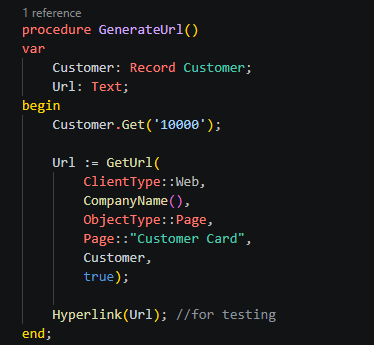
The following example opens the Customer Card for customer 10000.
procedure GenerateUrl()
var
    Customer: Record Customer;
    Url: Text;
begin
    Customer.Get('10000');

    Url := GetUrl(
        ClientType::Web,
        CompanyName(),
        ObjectType::Page,
        Page::"Customer Card",
        Customer,
        true);

    Hyperlink(Url); // For testing
end;
Understanding the Parameters
ClientType::WebGenerates a URL for the Business Central Web Client.
CompanyName()Uses the current company automatically.
ObjectType::PageSpecifies that the destination is a page.
Page::"Customer Card"Opens the Customer Card page.
CustomerOpens the page for the selected customer record.
trueIncludes the current record position (bookmark) in the generated URL.
Generated URL
The generated URL will look similar to:
https://businesscentral.dynamics.com/<Tenant>/<Environment>/?company=CRONUS%20India&page=21&bookmark=...The exact URL depends on your:
Tenant
Environment
Company
Record
Opening the URL
To test the generated URL, simply use:
Hyperlink(Url);This opens the page directly in the Business Central Web Client.
Real-World Use Cases
1. Approval Workflows
Send an email containing a direct link to the document that requires approval.
2. Notifications
Display a notification that opens the related customer, vendor, or sales order with a single click.
3. API Integrations
Return the Business Central record URL to external applications so users can navigate directly to the corresponding record.
4. Audit & Logging
Store record URLs in custom log tables, making it easy to revisit the affected record during troubleshooting.
Best Practices
Always use
CompanyName()instead of hardcoding the company name.Use page constants (e.g.,
Page::"Customer Card") instead of page IDs.Pass the record parameter to open a specific record directly.
Avoid manually constructing or modifying Business Central URLs.
Use
Hyperlink()only when you want to open the generated URL immediately.