
How to Convert Business Central Table Data to a Byte Array for Third-Party API Integrations (SaaS Compatible)
Share this Article
Share this Article
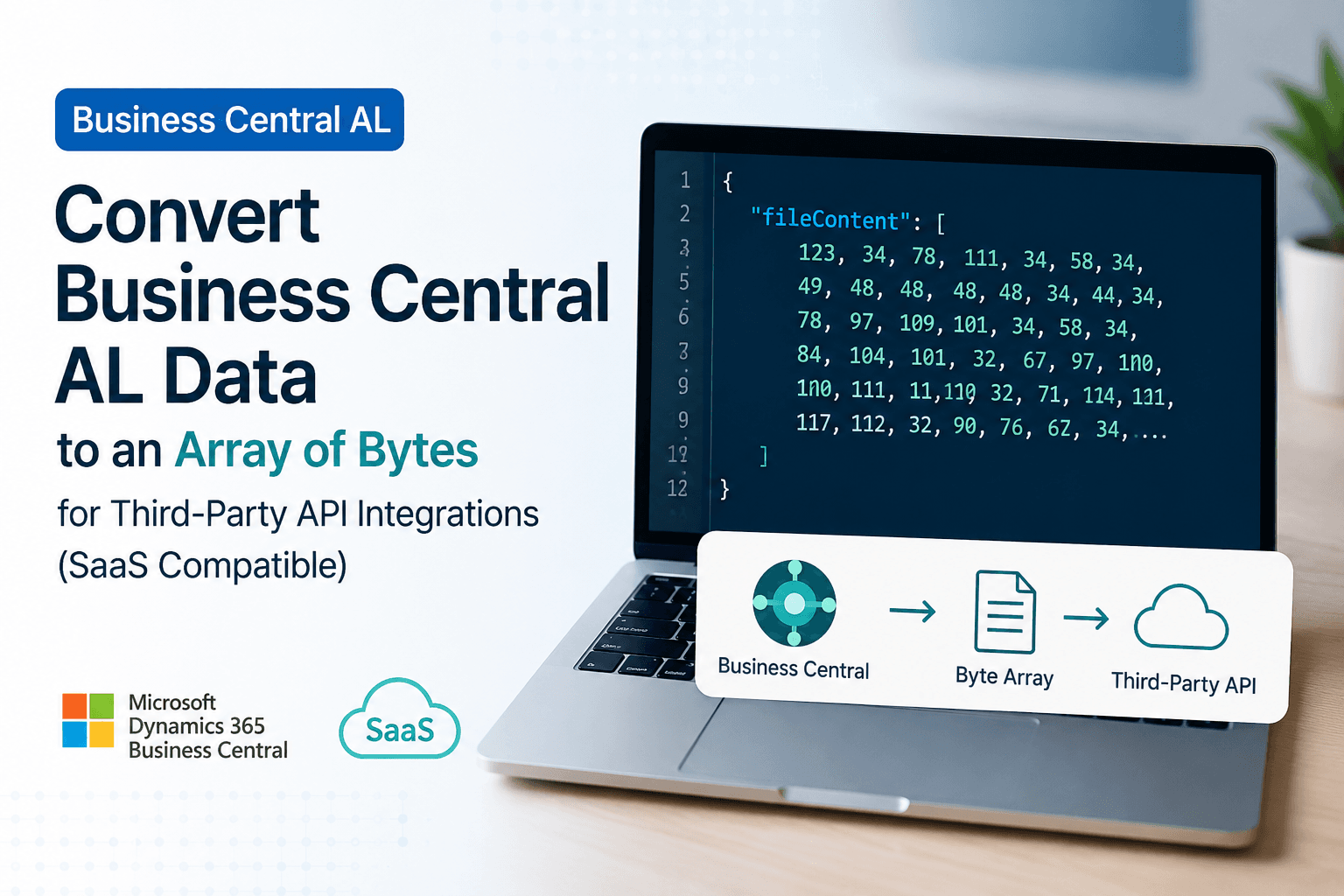
When integrating Microsoft Dynamics 365 Business Central with third-party applications, you may come across APIs that expect data in the following format instead of plain JSON:
{
    "fileContent": [123,34,78,111,34,58,34,49,48,48,48,48,...]
}
At first, this might seem confusing. These numbers are simply the UTF-8 byte values of your JSON or file content.
In this blog, I'll show you how to generate this byte array using standard AL code, making it fully compatible with Business Central SaaS.
Scenario
Suppose we have the following customer record:
No.: 10000,
Name: The Cannon Group PLC
Balance: 1250
First, we'll convert it into JSON:
{
    "No": "10000",
    "Name": "The Cannon Group PLC",
    "Balance": 1250
}
Since InStream works with streams rather than plain text, we first write the JSON into a Temp Blob using UTF-8 encoding. This allows us to read the content byte by byte.
Then we'll read the UTF-8 encoded JSON one byte at a time and build an array of bytes that can be sent to the third-party API.
Solution
The process is very simple:
Customer Record --> Create JSON --> Write JSON to Temp Blob --> Create InStream --> Read Each Byte --> Add Bytes to JsonArray --> Send to API
AL Code:
procedure CustomerToByteArray(CustomerNo: Code[20])
var
    Customer: Record Customer;
    TempBlob: Codeunit "Temp Blob";
    JsonObj: JsonObject;
    JsonArray: JsonArray;
    RequestJson: JsonObject;
    JsonText: Text;
    OutStr: OutStream;
    InStr: InStream;
    ByteValue: Byte;
    BytesRead: Integer;
begin
    Customer.SetAutoCalcFields("Balance (LCY)");

    if not Customer.Get(CustomerNo) then
        Error('Customer %1 not found.', CustomerNo);

    JsonObj.Add('No', Customer."No.");
    JsonObj.Add('Name', Customer.Name);
    JsonObj.Add('Balance', Customer."Balance (LCY)");
    JsonObj.WriteTo(JsonText);

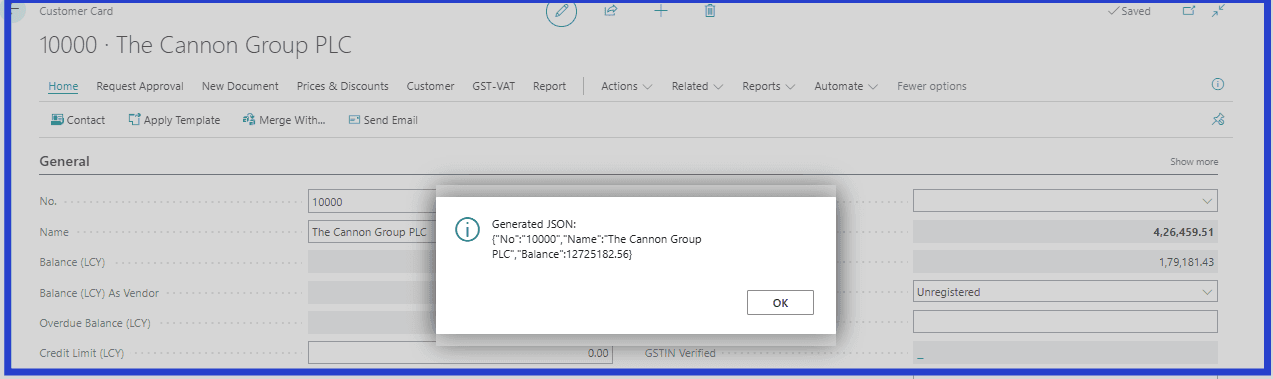
    Message('Generated JSON:\%1', JsonText);

    TempBlob.CreateOutStream(OutStr, TextEncoding::UTF8);
    OutStr.WriteText(JsonText);
    TempBlob.CreateInStream(InStr);

    repeat
        BytesRead := InStr.Read(ByteValue);
        if BytesRead > 0 then
            JsonArray.Add(ByteValue);
    until BytesRead = 0;

    RequestJson.Add('fileContent', JsonArray);
    RequestJson.WriteTo(JsonText);
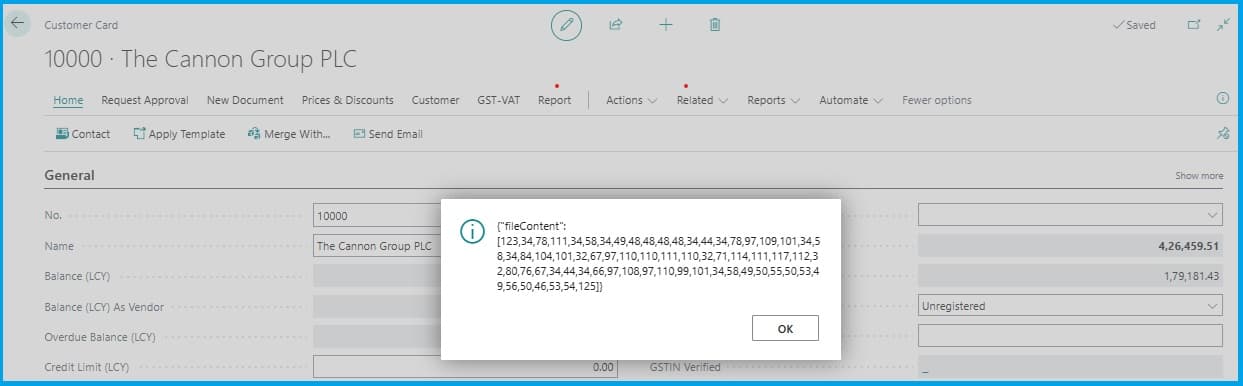
    Message(JsonText);
end;
Output
Generated JSON
Final Payload
Verify the Generated Byte Array
If you're curious whether the generated byte array is correct, you can easily verify it using an online Byte Array to String Converter.
Simply copy the generated file content byte array (without the square brackets) and paste it into any online converter.
Example Verification
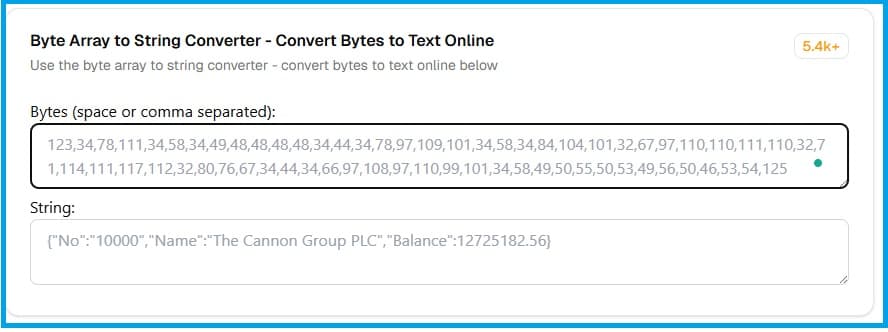
As you can see, the converter reconstructs the original JSON Content:
{"No":"10000","Name":"The Cannon Group PLC","Balance":12725182.56}This confirms that the byte array generated in Business Central is simply the UTF-8 representation of the JSON text.
Tip: This is a quick way to debug your integrations. If the decoded text matches your expected JSON, you can be confident that the byte array being sent to the third-party API is correct.
Important Note
Although InStream.Read() supports several primitive data types such as Byte, Integer, Boolean, and Text, it doesn't provide an overload for array of Byte. Therefore, the correct approach is to read one Byte at a time and add it to a JsonArray.
This won't work:
Buffer: array[1024] of Byte;
BytesRead := InStr.Read(Buffer);
The correct approach is to read one byte at a time:
BytesRead := InStr.Read(ByteValue);
if BytesRead > 0 then
    JsonArray.Add(ByteValue);
Where Can You Use This?
This approach is useful when integrating Business Central with:
Manufacturing or MES systems
Third-party REST APIs
Banking integrations
Document management systems
Any API that expects a byte array instead of plain JSON
Conclusion
Converting Business Central data into a byte array is straightforward once you understand the process:
Create your JSON.
Write it to a
Temp Blobusing UTF-8 encoding.Read the stream byte by byte.
Add each byte to a
JsonArray.Send the array in your API request.
Since this solution uses only standard AL objects, it works perfectly in Business Central SaaS without requiring .NET interoperability.
That's all it takes to convert Business Central data into a byte array—happy coding!